Set up Exoconnect in ten minutes
Connect your accounts, publish a post, answer comments automatically, and bring in your AI agent, step by step.
Updated · 4 min read
This guide takes you from a new account to a workspace that posts, answers comments for you, and works with your AI agent. Each step takes a minute or two, and you can stop after any of them.
Before you start: your Instagram account needs to be a professional account (Business or Creator) linked to a Facebook Page. That’s Meta’s rule for any app that posts or answers on your behalf. For WhatsApp, have the phone number of your WhatsApp Business account ready.
1. Create your account
Choose Get started on '%3e%3cpath%20d='M64.5%2010.5H29L16.5%2023V76L29%2088.5H64.5'%20stroke-width='13'/%3e%3cpath%20d='M77.5%2030H46L38%2038V66L46%2074H77.5'%20stroke-width='11'/%3e%3cpath%20d='M16.5%2052H59'%20stroke-width='10'/%3e%3c/g%3e%3ccircle%20cx='87.5'%20cy='55'%20r='12'%20fill='%23b69cff'/%3e%3cg%20fill='none'%20stroke='%231b1190'%20stroke-linecap='round'%20stroke-linejoin='round'%3e%3cpath%20d='M64.5%2010.5H29L16.5%2023V76L29%2088.5H64.5'%20stroke-width='13'/%3e%3cpath%20d='M77.5%2030H46L38%2038V66L46%2074H77.5'%20stroke-width='11'/%3e%3cpath%20d='M16.5%2052H59'%20stroke-width='10'/%3e%3c/g%3e%3ccircle%20cx='82.5'%20cy='52'%20r='12'%20fill='%231b1190'/%3e%3c/svg%3e) exoconnect.in and sign in. Exoconnect creates your own workspace right away; there’s nothing to set up and no card needed for the Free plan.
exoconnect.in and sign in. Exoconnect creates your own workspace right away; there’s nothing to set up and no card needed for the Free plan.
2. Connect Instagram, Facebook and WhatsApp
Open Connections from your account menu. On a new workspace, the Today page also shows a Connect Instagram or Facebook link.
- Instagram and Facebook: choose Instagram or Facebook Pages, then Continue with Facebook. Approve Exoconnect in Facebook’s window, and you come straight back. Pick the account and choose Connect. To add another account, do it again.
- WhatsApp: Meta’s sign-up window opens. Choose your business and phone number. Then Exoconnect asks for a six-digit PIN to register the number on Meta’s WhatsApp Business Platform. Set up WhatsApp Business walks through it.
Each connection shows its state, such as Receiving messages. If Meta ever needs you to sign in again, the connection says so and shows the way back.
The Free plan connects up to three accounts; paid plans connect more.
3. Publish your first post
On Today, select Share a photo, a video or an update…, or drop photos and videos onto the page.
- Choose the accounts it goes to.
- Add your photos or video, and write your caption.
- Choose Post, or turn on Schedule for later and pick any time from a minute to 30 days ahead.
Your post appears under Posts with the result for each account. You can cancel a scheduled post until it goes out.
4. Answer comments and messages
Open Inbox. Messages from all your accounts arrive in one list: Instagram, Messenger, and WhatsApp chats and groups. Reply right there.
Comments live with your posts. On Today, open Posts, then All comments, to reply to comments or hide them on Instagram and Facebook. One inbox for Instagram, Facebook and WhatsApp shows where everything lands.
5. Let a recipe answer comments for you
Go to Today, then Recipes, and choose Make your first recipe (later, New recipe). Start from a ready-made one, such as Send a link, or make your own:
- Say which comments to answer: ones with certain words, like “price”, or ones that mean something, like “people asking where to buy”. Matching by meaning is on every paid plan, from Starter.
- Pick the accounts, and every post or only some.
- Write the reply: a public answer under the comment, a message, or both.
- If you like, give your team some time first. The recipe only answers if nobody else did.
Choose Turn on. Exoconnect tries the recipe on sample comments first, then turns it on. It answers from the next comment on, and every reply it sends shows in Activity.
6. Ask Exi for help
Open Assistant and ask Exi in plain words: “Draft a post about our new menu”, “Who asked about prices this week?”, or “How are we doing against our competitors?”
Exi is included from the Starter plan. On Starter, add your own AI provider key under Settings, then API keys. On Pro, $20 of AI usage is included every month. Anything Exi wants to post or send can wait for your approval as a draft.
7. Connect your own AI agent
If you work in Claude, ChatGPT, Claude Code, Codex, Cursor, VS Code or Gemini CLI, go to Settings, then Agents, and choose Add agent. Pick your agent and follow its steps: you sign in, approve it, and it’s connected. There’s no key to copy.
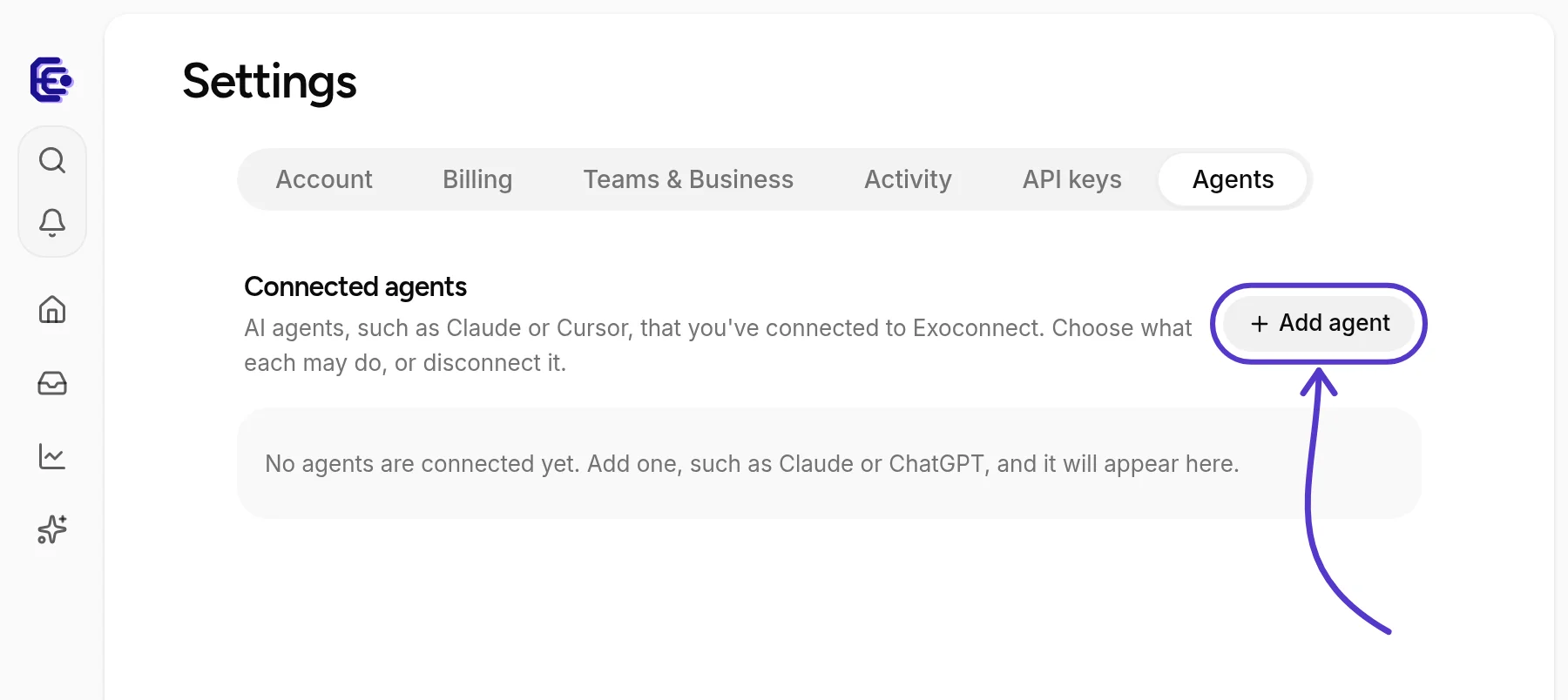
Back in Agents, choose what each agent may do on its own, or disconnect it at any time.
8. Bring your team
When others help you, go to Settings, then Teams & Business, and turn your account into a team. Invite people with the role that fits each of them, and add a workspace for each brand or client. The Team plan is $25 a seat a month, and as an admin you can see who spent how much of the team’s AI credits, on which kinds of tasks.
What’s next
You now have a workspace that posts, listens and answers. For everything else it can do, take the quick tour.
Try it in your own account
Get started